
Windows 10 = Non-Compliance: The Upgrade Every ABA Owner Must Make Now
Dec 02, 2025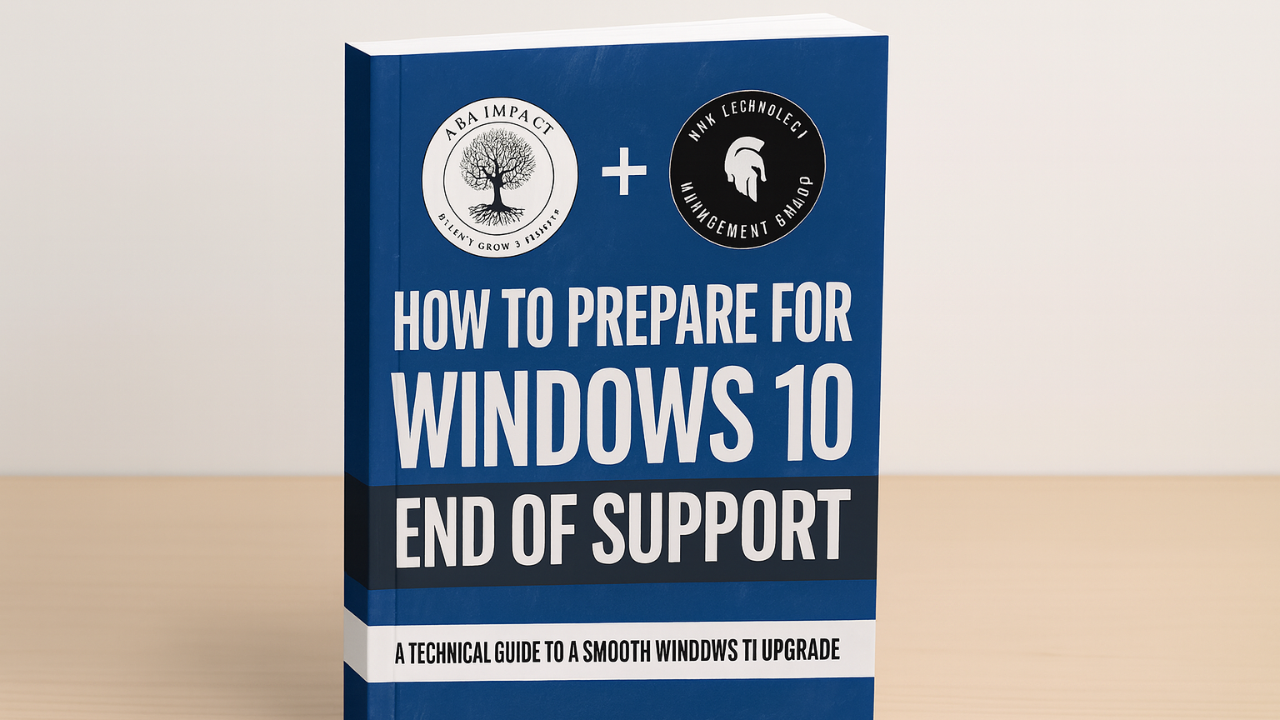
Windows 10 = Non-Compliance: The Upgrade Every ABA Owner Must Make Now
And how to make the transition to Windows 11 smooth, safe, and stress-free
Let’s talk about something that probably hasn’t been at the top of your “urgent clinical things I have to do today” list…
Your computer’s operating system.
I know — that sounds like the world’s least exciting topic.
But stick with me for a few minutes, because this one matters in a big way for your practice, your documentation, your HIPAA compliance, and honestly… your sanity.
If you’re still running Windows 10 in December 2026, you’re officially in the danger zone.
Support ended back in October 2025.
That means no more security patches, no more fixes, and no more safety net from Microsoft.
And if your team is still charting notes, running billing, communicating with families, or managing schedules on a Windows 10 machine, you could be setting yourself up for some very preventable problems like data breaches and failed audits.
Today, I’m walking you through why this matters, what to do, and how to upgrade without losing any unnecessary time, data, or money. By the end, you’ll know exactly what next steps to take and you’ll see why upgrading is a must, not a maybe.
Let’s dive in.
First: What Actually Happened to Windows 10?
Microsoft officially ended support for Windows 10 on October 14, 2025.
That’s not rumor, not “set to happen someday,” but something that already happened. Microsoft’s deadline and the consequences of no security updates are outlined in our free guide: How to Prepare for Windows 10 End of Support: A Technical guide to a Smooth Windows 11 Upgrade – email support@abaimpact.com for your free download.
When Microsoft says “end of support,” here’s what that really means:
- No more security updates
- No bug fixes
- No vulnerability patches
- No help if something breaks
- Increasing compatibility issues with new software
So yes — Windows 10 still runs. Your computer doesn’t suddenly shut down. But it becomes more risky and less reliable every second you keep using it.
Why Clinicians and ABA Practices Are Hit Especially Hard
If you were just gaming or checking email, running an outdated system wouldn’t be great — but not disastrous.
But you’re not doing that.
You’re storing:
- Client records
- Assessments
- Session data
- Billing information
- Staff and family communication
- Protected health information (PHI)
In other words, exactly the kind of information hackers want.
Unsupported systems become easy targets for hackers and auditors, creating real HIPAA and liability risks.
Let me say this plainly:
If your ABA practice is still using Windows 10, you are operating out of HIPAA alignment and putting PHI at unnecessary risk.
And it’s not just about compliance. It’s about:
- Avoiding ransomware attacks
- Preventing breaches
- Keeping insurance contracts valid
- Avoiding downtime
- Protecting your ability to operate
None of these things are dramatic “what ifs.”
They’re exactly the problems outdated systems cause and why Microsoft gives a one-year countdown before shutting things off.
“But My Windows 10 Computer Still Works…”
Of course it does… for now.
But behind the scenes, things are getting shakier with each passing day.
There are 3 major problems:
- Security risks
- Compliance issues
- More tech problems and slower support from your IT vendors
This is like driving a car with “check engine” lights flashing everywhere.
Sure, you can drive it… but should you?
A Quick Reality Check (Delivered With Love)
Clinicians tell me this all the time:
“I’ll deal with it later. It hasn’t been a problem yet.”
Totally understandable. You’re juggling caseloads, supervision, scheduling, authorizations, families, and a never-ending to-do list.
But here’s the thing:
Technology problems always show up at the worst possible moment.
- Right before an insurance/compliance audit
- Right when you finish a report
- Right when staff are trying to log session notes
- Right when an important parent email comes in
Nobody wakes up planning to deal with a crashed computer or a ransomware lockout.
Upgrading before those problems happen is the easiest, safest, least stressful route.
So Let’s Get Practical: What You Need to Do Next
Below, I’m unpacking the upgrade steps described in our guide but in a more clinician-friendly, “just talk to me like a human” way.
This is the exact roadmap you can use to upgrade smoothly — whether you DIY or get support from us.
Step 1: Check Whether Your Computer Can Handle Windows 11
Not all Windows 10 machines can run Windows 11.
Some are simply too old or missing newer security hardware (like TPM 2.0). If you’re not sure what that means or if your machine is compatible, you can use the Microsoft compatibility tool: https://support.microsoft.com/en-us/windows/check-if-a-device-meets-windows-11-system-requirements-after-changing-device-hardware-f3bc0aeb-6884-41a1-ab57-88258df6812b
This will take about 3 minutes.
You’re looking for one of two outcomes:
- A) “Yes, you can run Windows 11.”
Great! You’re ready to upgrade.
- B) “No, your device doesn’t meet requirements.”
If this happens, don’t panic.
It just means it’s time to replace the machine — and honestly, for business tools used daily, replacing a 5–7+ year-old computer is typically overdue anyway.
Step 2: Back Up EVERYTHING (Yes, everything.)
If you do nothing else, please do this.
Our guide stresses backup importance multiple times due to the danger of lost files during an upgrade and the backup process. Data redundancy isn’t just a good idea, it’s a HIPAA requirement and it’s tied to “record retention” requirements, and every state has their own unique requirements.
Here's the simple version:
Your data isn’t safe unless it’s backed up in at least one place that isn’t your computer – like a cloud backup solution or an external hard drive.
That includes:
- Session notes
- Templates
- Scheduling tools
- Assessment files
- Parent communication
- Billing docs
- Staff HR info
- Photos, reports, forms — all of it
As our guide suggests, you have two backup options:
Option 1: You’re switching to a new computer
Back up all your files so you can transfer them.
Option 2: You’re upgrading your current computer
Do a full image backup — a complete snapshot of your entire system.
This is like taking a picture of your entire computer so you can restore everything if something goes sideways.
Step 3: Test Your Backup (Don’t skip this!)
This is the step everyone skips until it’s too late.
Our guide explains exactly why: it’s the difference between peace of mind and panic.
Testing usually takes 2–5 minutes:
- “Mount” or preview the backup
- Make sure the important folders are really there
- If you see your notes, billing folders, and desktop items — you’re good
Again, this isn’t about testing every file.
It’s about knowing your lifeline is real.
Step 4: Schedule the Upgrade (Not during clinic hours!)
Emotionally, upgrading is like deciding to reorganize your closet.
It feels easier to avoid… until something forces your hand.
We strongly recommend doing the upgrade:
- During downtime
- After sessions
- When you won’t be relying on the computer
Why?
Because even smooth upgrades take time:
- 30 minutes to an hour for newer machines
- Up to 2+ hours for older ones
- And unexpected issues (rare, but real) can add another hour… or more
This is not something to start between sessions.
Step 5: Expect the Unexpected — and Know What to Do
Our guide lists exactly what to do if something goes wrong:
- Recover missing files from the backup
- Restore broken systems from your full image backup
- Mount your backup if your PC won’t start
Here’s the truth:
If you have a good backup, even big problems become small problems.
But without a backup?
Small problems become catastrophic.
Step 6: After the Upgrade — Check Your Essentials
Once Windows 11 is installed, take a few minutes to check your key tools:
- Practice management system
- Billing tools
- Printer
- Scheduling software
- Any assessment tools you use
This is quick, but it’s better to check early than find out during a session.
“Can’t I Just Stay on Windows 10 a Little Longer?”
Let me give you three honest answers:
You can — but it’s not safe.
Every second increases the security risk.
Insurance carriers increasingly require supported systems.
Running Windows 10 may put some contracts at risk.
HIPAA expects you to use supported, security-patched systems.
Continuing with Windows 10 is operating knowingly out of alignment.
None of this is meant to scare you.
It’s meant to give you clarity — so you can protect your practice and your clients.
“What if upgrading breaks something?”
This is the most common fear, and it’s valid.
But here’s something reassuring:
Our guide lays out exactly how to recover from any issue you can imagine — and with the right support, upgrades are usually painless.
When someone helps you:
- You don’t lose data
- You don’t lose access
- You don’t get stuck
- You don’t waste hours
- You don’t disrupt client care
This is why so many practices ask for our guided support.
Handled well, the whole process is smoother than most people expect.
If You’re Feeling Behind, You’re Not Alone
I want to say this because clinicians often feel overwhelmed when it comes to tech stuff.
But listen:
You’re a clinician — not an IT engineer.
You’re supposed to focus on your clients, not operating systems.
Feeling behind or confused doesn’t mean you’re irresponsible or ignorant.
It means you’re human, and you’ve been prioritizing the work that actually matters.
Upgrading now is not a sign that you’ve “waited too long.”
It’s a sign that you’re stepping into the next phase of taking care of your practice.
So… What Should You Do Next?
Here’s the simplest, safest path forward:
→ Book a free call with our team:
https://meetings.hubspot.com/derreck-ogden/windows10to11upgrade
We’ll help you:
- Review your current setup
- See which devices need upgrading or replacing
- Map out costs and timelines
- Back up everything safely
- Handle your Windows 11 upgrade without stress
- Avoid downtime and data loss
- Stay compliant and protected
No pressure.
No tech jargon.
Just clarity and next steps.
And honestly — you’ve already waited longer than Microsoft intended most organizations to wait. Getting support now is the most responsible and least stressful action you can take.
Final Thought: You’ve Got This
Our DIY guide ends on this note — and I want to echo it.
Upgrading doesn’t have to be scary.
It doesn’t have to be disruptive.
And you don’t have to figure it out alone.
This is one of those business decisions where getting ahead now is so much easier than scrambling later.
So, take 20 seconds, breathe, and click the link to book your free call.
Your future self — and your practice — will be so relieved you did.
Book your free upgrade planning call here:
👉 https://meetings.hubspot.com/derreck-ogden/windows10to11upgrade
(Most clinicians tell us they feel calmer within the first 5 minutes of the call.)
Click here to join the eBCBA™ Odyssey and reclaim your role as the visionary leader you’re meant to be.
Stay connected with news and updates!
Join our mailing list to receive the latest news and updates from our team.
Don't worry, your information will not be shared.
We hate SPAM. We will never sell your information, for any reason.